Customer Management
Customer Sync
Sync Shopify customers to QuickBooks Online
QuickBooks Connector automatically syncs your Shopify customers to QuickBooks Online, keeping your customer records consistent across both platforms.
How It Works
When you sync a customer, QuickBooks Connector:
- Fetches customer data from Shopify
- Maps the customer fields to QuickBooks format
- Creates the customer in QuickBooks Online
- Tags the customer with Ts-QBO-Sync in Shopify to track sync status
What Gets Synced
| Shopify Field | QuickBooks Field |
|---|---|
| First Name | GivenName |
| Last Name | FamilyName |
| Full Name | DisplayName, FullyQualifiedName |
| PrimaryEmailAddr | |
| Phone | PrimaryPhone |
| Billing Address | BillAddr (Line1, City, Country, PostalCode) |
| Shipping Address | ShipAddr (Line1, City, Country, PostalCode) |
| Company Name | CompanyName |
Auto Customer Sync
With webhooks enabled, customers are automatically synced when:
- Customer Created — A new customer signs up or is added to your Shopify store
- Customer Updated — An existing customer's details are modified
Viewing Customers
Navigate to the Customers page in the QuickBooks Connector app to see your customer list and sync status.
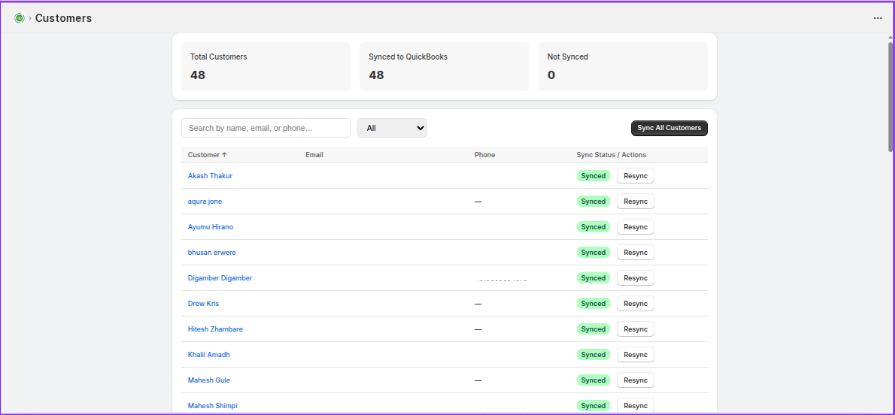
The dashboard shows:
- Total Customers — Total customers in your Shopify store
- Synced to QuickBooks — Number of customers synced to QuickBooks
- Not Synced — Number of customers pending sync
Customer Table
| Column | Description |
|---|---|
| Customer | Customer name (clickable link) |
| Customer email address | |
| Phone | Customer phone number |
| Sync Status / Actions | Shows Synced/Not Synced with a Sync or Resync button |
Search and Filter
- Search by customer name, email, or phone number
- All — Filter by sync status (All / Synced / Not Synced)
- Sort by customer name (click column header)
Syncing Customers
Sync a Single Customer
- Go to the Customers page
- Find the customer you want to sync
- Click the Sync button next to it
- The customer will be queued for sync to QuickBooks
Bulk Sync All Customers
- Go to the Customers page
- Click Sync All Customers button in the top-right corner
- All unsynced customers will be queued for processing
Resync a Customer
To update an already-synced customer:
- Find the customer on the Customers page
- Click the Resync button (shown for already synced customers)
- The customer record will be updated in QuickBooks with the latest Shopify data
Customers without names will display their email address instead. The sync process uses the customer's first and last name as the display name in QuickBooks.