Order Rules
Configure rules to control how Shopify orders are synced to QuickBooks
Order Rules allow you to define conditions that control how and when orders are synced to QuickBooks. You can create multiple rules with different priorities to handle various order scenarios.
What Are Order Rules?
Order Rules let you filter which orders get synced and configure how they are created in QuickBooks based on conditions like:
- Payment status (paid, pending, refunded, etc.)
- Fulfillment status (fulfilled, unfulfilled, partially fulfilled)
- Order source (web, POS, draft order, android, iPhone)
All Campaigns
Navigate to the Orders page in the QuickBooks Connector app and select the Order Setting tab. You will see the All Campaigns section listing all your order rules.
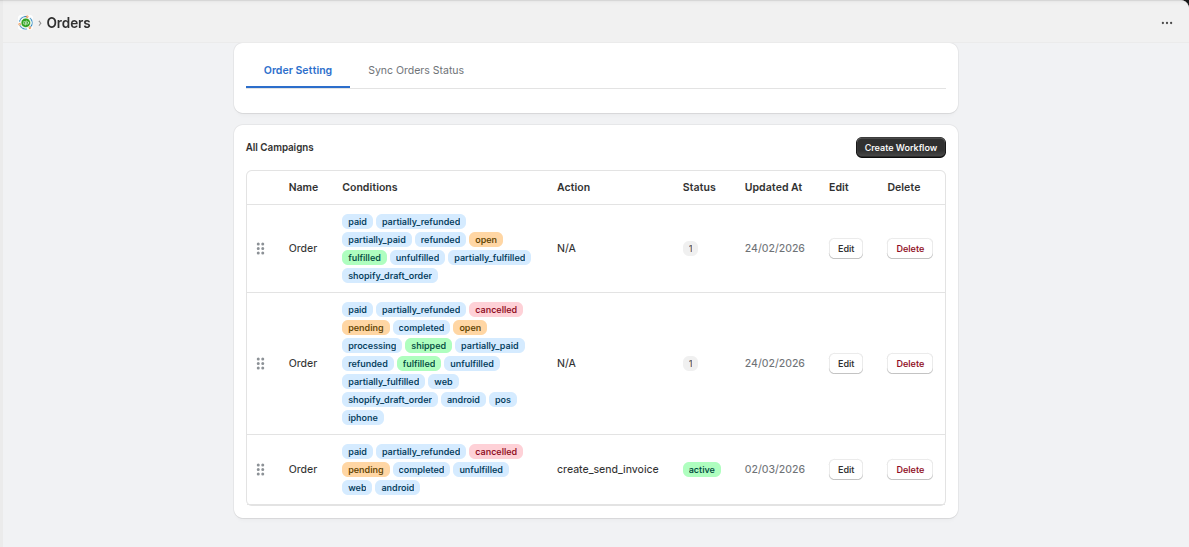
Each rule displays:
| Column | Description |
|---|---|
| Name | The rule name |
| Conditions | Payment status, fulfillment status, and order source conditions as tags |
| Action | The action performed when conditions match (e.g., create_send_invoice) |
| Status | Active or inactive status |
| Updated At | Date the rule was last modified |
| Edit | Edit the rule settings |
| Delete | Remove the rule |
Creating a Rule
- Click the Create Workflow button in the top-right corner of the All Campaigns section
- The Create Rule form will open with the following options:
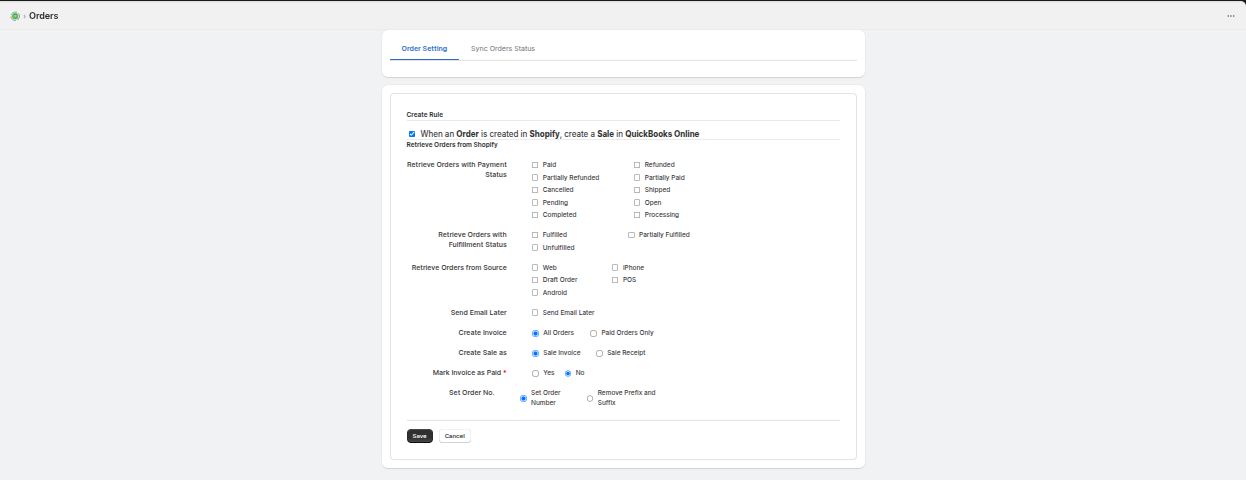
Rule Settings
| Setting | Description |
|---|---|
| Retrieve Orders with Payment Status | Select which payment statuses to sync: Paid, Partially Refunded, Cancelled, Refunded, Partially Paid, Shipped, Pending, Completed, Open, Processing |
| Retrieve Orders with Fulfillment Status | Select fulfillment statuses: Fulfilled, Unfulfilled, Partially Fulfilled |
| Retrieve Orders from Source | Select order sources: Web, Draft Order, Android, iPhone, POS |
| Send Email Later | Enable to send invoice emails later |
| Create Invoice | Choose between All Orders or Paid Orders Only |
| Create Sale as | Select Sale Invoice or Sale Receipt |
| Mark Invoice as Paid | Choose Yes or No to mark invoices as paid |
| Set Order No. | Choose Set Order Number or Remove Prefix and Suffix |
- Click Save to create the rule, or Cancel to discard
Rule Priority
Rules are evaluated in priority order (lowest number first). When an order matches a rule's condition, that rule's action is applied. If multiple rules could match, the highest priority rule takes precedence.
You can reorder rules by dragging them in the All Campaigns list.
Managing Rules
Edit a Rule
Click the Edit button on an existing rule to modify its conditions, actions, or settings.
Delete a Rule
Click the Delete button to remove a rule. Remaining rules will continue to function with their existing priorities.
If no rules are configured, all orders will be synced using default settings. Order rules give you fine-grained control over the sync behavior.