Auto Order Sync
Automatically sync Shopify orders to QuickBooks Online
Auto Order Sync automatically pushes your Shopify orders to QuickBooks Online whenever a new order is created or an existing order is updated.
How It Works
When enabled, QuickBooks Connector registers webhooks on your Shopify store that listen for:
- Order Created — Triggers when a new order is placed
- Order Updated — Triggers when an order's status changes (payment, fulfillment, etc.)
When these events occur, the order is automatically queued for sync to QuickBooks.
What Gets Synced
Each Shopify order is synced to QuickBooks with the following data:
| Shopify Field | QuickBooks Field |
|---|---|
| Customer name & email | Customer reference |
| Billing address | Bill Address |
| Shipping address | Ship Address |
| Line items (product, quantity, price) | Line items |
| Shipping cost | Shipping line |
| Tax amounts | Tax amounts |
| Discounts | Discount amounts |
| Order total & currency | Total amount |
| Financial status | Payment status |
| Fulfillment status | Fulfillment status |
Sync Orders Status
Navigate to the Orders page and click the Sync Orders Status tab to view all orders and their sync status.
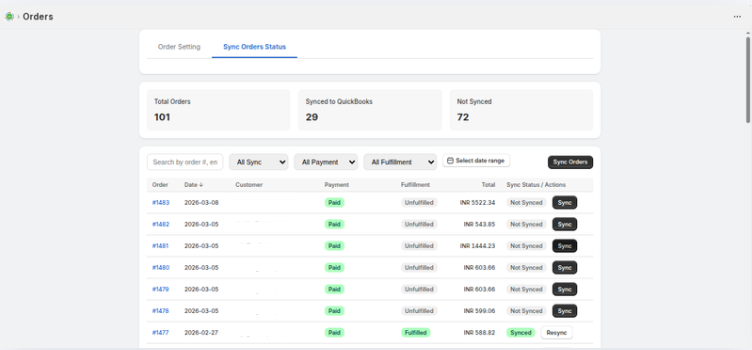
The dashboard shows:
- Total Orders — Total number of orders in your Shopify store
- Synced to QuickBooks — Number of orders already synced
- Not Synced — Number of orders yet to be synced
Filters
Use the filter dropdowns to narrow down orders:
- All Sync — Filter by sync status (All / Synced / Not Synced)
- All Payment — Filter by payment status (Paid, Unpaid, etc.)
- All Fulfillment — Filter by fulfillment status (Fulfilled, Unfulfilled, etc.)
- Select date range — Filter orders by date range
Order Table
| Column | Description |
|---|---|
| Order | Shopify order number (clickable link) |
| Date | Date the order was created |
| Customer | Customer name |
| Payment | Payment status (Paid, Unpaid, etc.) |
| Fulfillment | Fulfillment status (Fulfilled, Unfulfilled) |
| Total | Order total amount with currency |
| Sync Status / Actions | Shows Synced/Not Synced with a Sync or Resync button |
Bulk Order Sync
To sync all existing orders at once:
- Go to the Sync Orders Status tab
- Click Sync Orders button
- Monitor progress as orders are synced in the background
Bulk sync processes orders in batches. Large order volumes may take some time to complete. The page will automatically refresh to show updated sync statuses.
Next Steps
- Manual Order Sync — Sync individual orders manually
- Order Rules — Configure rules to control how orders are synced