Quick Setup
Connect your QuickBooks account to Shopify using the one-click Quick Setup method
Quick Setup is the fastest way to connect your Shopify store to QuickBooks Online. It uses for a seamless one-click connection.
Before proceeding, make sure you have completed the QuickBooks Setup steps to create your Intuit account and configure the Developer Portal.
Prerequisites
- A Shopify store with the QuickBooks Connector app installed
- An active subscription plan (see plans)
- A QuickBooks Online account (either Sandbox or Production)
- Completed QuickBooks Setup (Intuit account and redirect URI configured)
Steps to Connect
Step 1: Select Quick Setup
Open the QuickBooks Connector app from your Shopify admin panel. You will see the QuickBooks Connector for Shopify setup page with two tabs. Make sure the Quick Setup tab is selected.
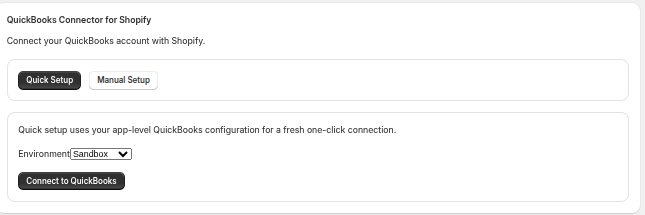
Step 2: Select Environment
Choose your environment from the dropdown and click the Connect to QuickBooks button:
- Sandbox — Use this for testing and development. Connects to the QuickBooks Sandbox environment where you can test syncing without affecting real data.
- Production — Use this for your live QuickBooks Online account with real business data.
We recommend starting with the Sandbox environment to test the connection and sync features before switching to Production.
After clicking Connect to QuickBooks, a popup window will open redirecting you to the Intuit sign-in page.
Step 3: Sign In and Select Company
If you are not already logged in, you will see the Intuit sign-in page. Enter your QuickBooks credentials:
- Email or user ID
- Password
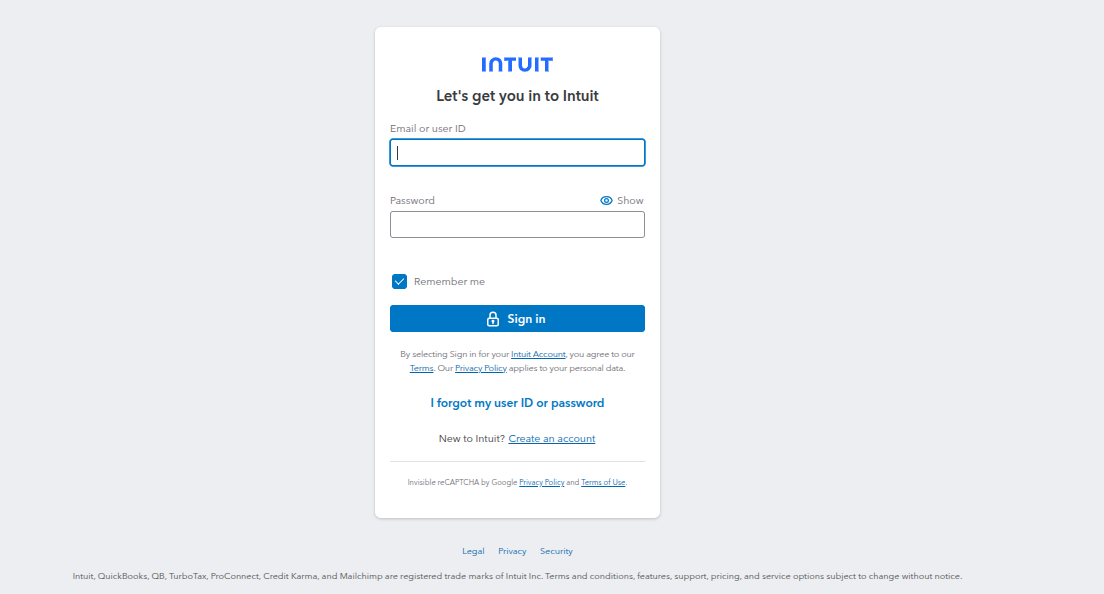
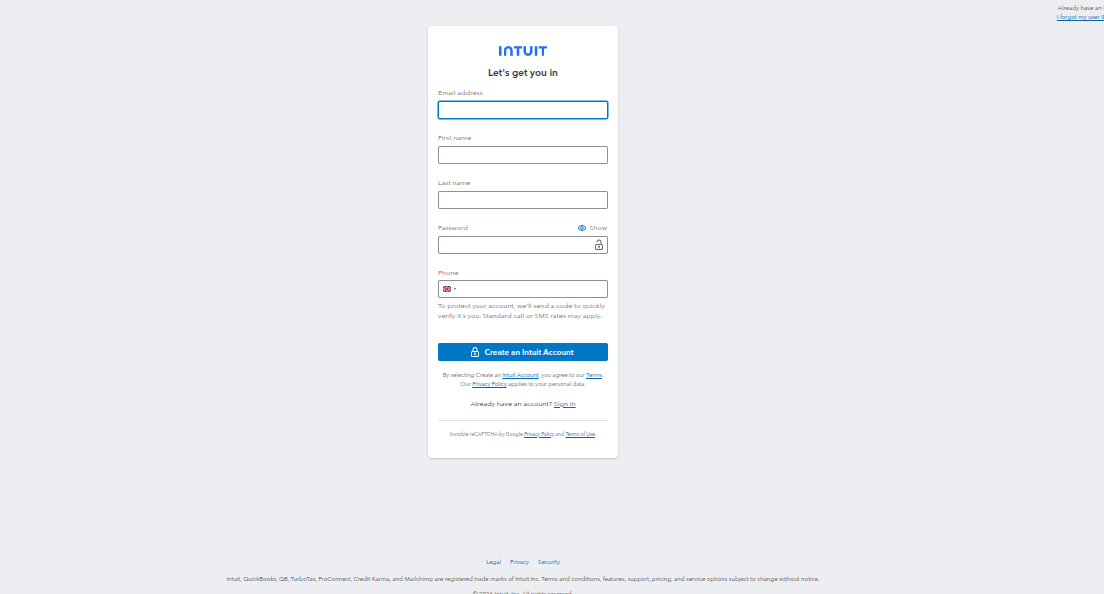
If you don't have an Intuit account yet, click Create an account to sign up. See QuickBooks Setup - Step 2 for details.
After signing in, you will be asked to select your company. Search for your company from the dropdown and select it.
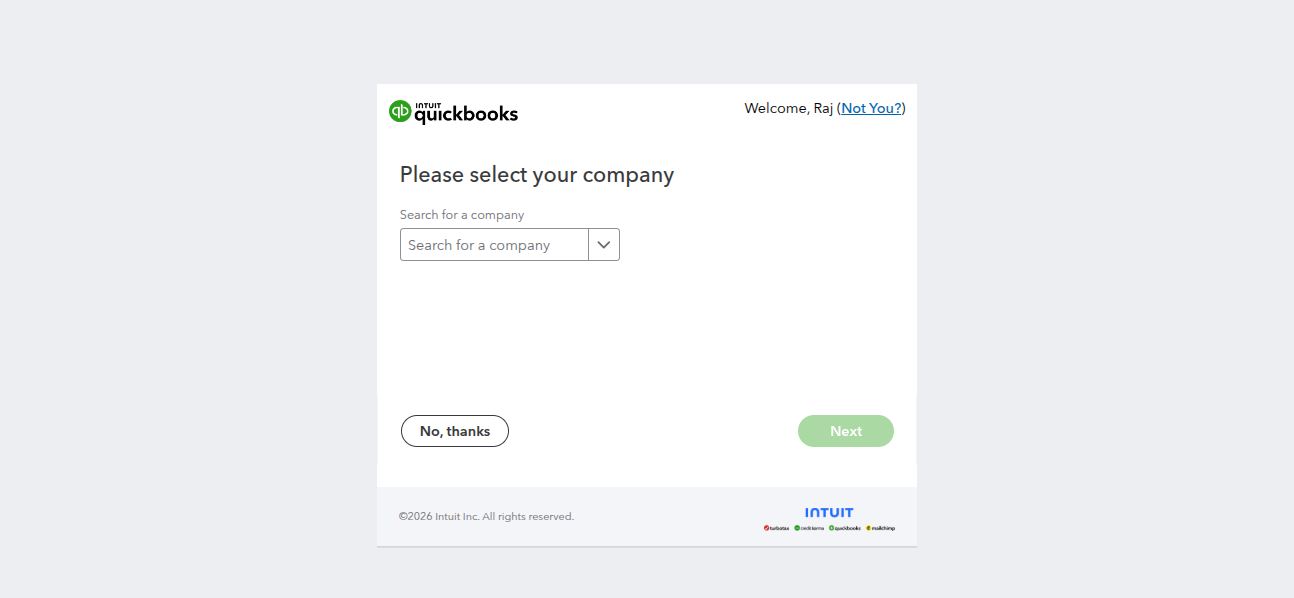
Click Next to authorize the connection. Once authorized, the popup will close and you will be redirected back to the QuickBooks Connector app.
Step 4: Connection Confirmed
Your connection status will now show as Active with the following details:
- Company ID — Your QuickBooks company identifier
- Environment — Sandbox or Production (shown as a badge)
- Country — The country of your QuickBooks account
- Connected At — Timestamp of when the connection was established
If you need to switch environments or reconnect, use the Reset button to disconnect first, then connect again with the desired settings.
Next Steps
Once connected, you can start syncing your data: